
Taking a screenshot on an Android phone is one of the most useful basic skills every smartphone user should know. Whether you want to save a payment confirmation, share a WhatsApp chat, capture an error message, or keep important information, screenshots make things easier.
Although the process is simple, many users in Pakistan—especially beginners—still ask: How do I take a screenshot on my Android phone? The good news is that Android offers multiple easy ways to take screenshots, and most methods work across all brands like Samsung, Infinix, Tecno, Xiaomi, Oppo, Vivo, and Realme.
In this step-by-step guide, we’ll explain all possible ways to take a screenshot on Android phones, using clear and simple instructions.
Take a Screenshot on Android Phone
1. Using Power + Volume Buttons
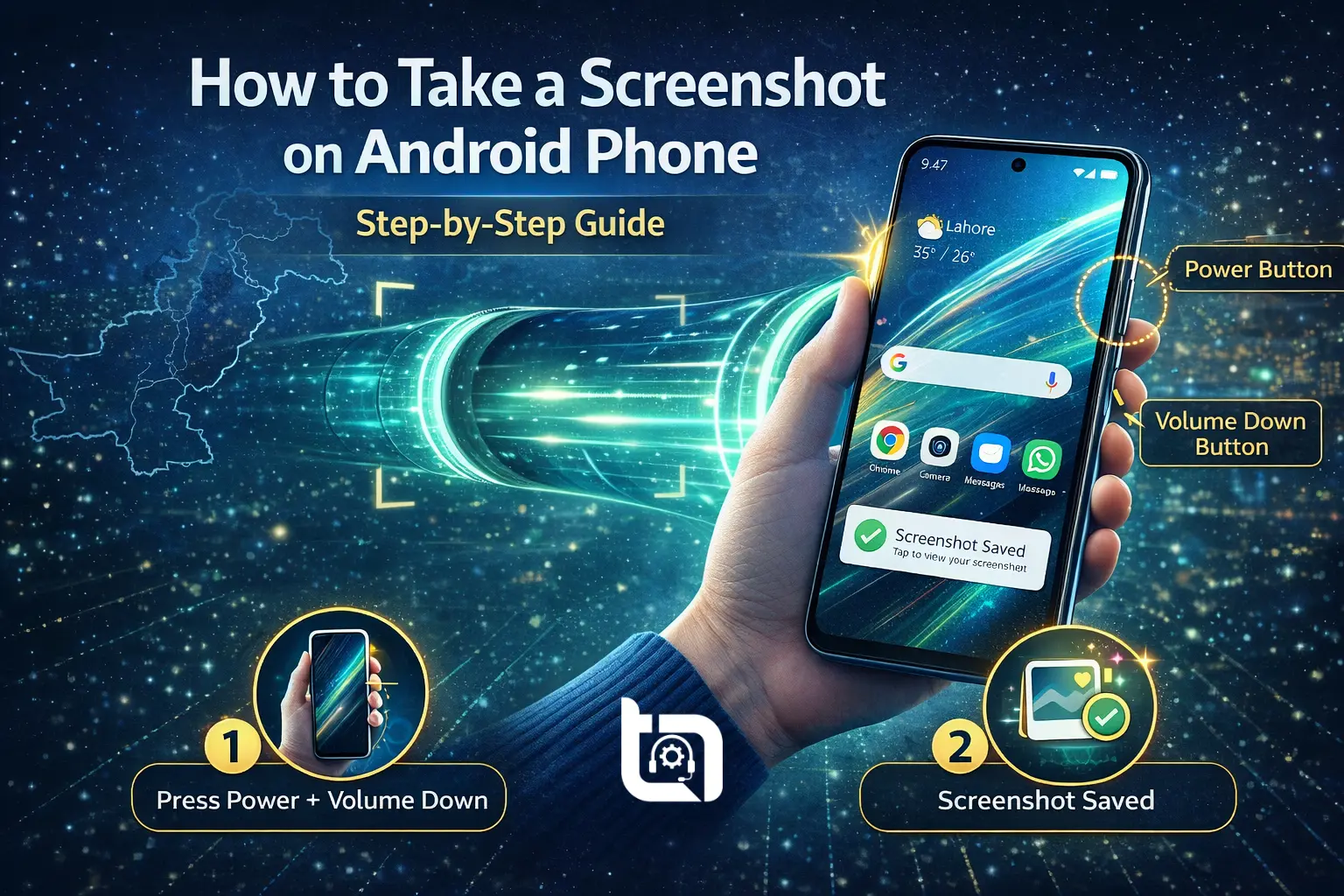
This is the most common and universal method on Android and works on almost all devices. Follow these simple steps:
- Open the screen you want to capture
- Press and hold Power button + Volume Down button together
- Hold for 1–2 seconds
- You will hear a shutter sound or see a screen flash
The screenshot is automatically saved to your Gallery or Photos app.
2. Using Three-Finger Gesture
Many Android phones now support gesture-based screenshots. Follow these steps to capture a screenshot:
- Go to Settings
- Open Additional Settings / Advanced Features
- Enable Three-finger screenshot
- Swipe down on the screen using three fingers
3. Using Quick Settings Menu
Some Android phones offer a screenshot option in the Quick Settings panel. This method is helpful if your physical buttons are not working properly. Follow these simple steps:
- Swipe down from the top of the screen
- Look for the Screenshot icon
- Tap it to capture the screen
4. Using Google Assistant
You can also use voice commands to capture a screenshort on an Android smartphone by following these simple steps:
- Activate Google Assistant
- Say: “Hey Google, take a screenshot”
- The screen will be captured instantly
⚠️ This method may not work in all apps due to privacy restrictions.
5. Using Palm Swipe (Samsung Phones)
Samsung phones offer a palm swipe gesture for capturing a screenshot.
- Go to Settings → Advanced Features
- Enable Palm swipe to capture
- Swipe the edge of your hand across the screen
Final Thought
Knowing how to take a screenshot on an Android phone is a basic but essential skill. Android offers multiple ways to capture your screen, from button combinations to gestures and voice commands. Once you know these methods, sharing and saving important information becomes quick and hassle-free. No matter which Android brand you use in Pakistan, one of these methods will work for you.
For more easy Android tutorials, mobile tips, and step-by-step tech guides, keep visiting Tecno Times Pakistan — making technology simple for everyone in Pakistan.